Tagging
Imperia CMS provides an easy way to add topic-related tags to each document and then display them in the document. These cross-links by tags enable you to find further relevant information on a topic starting from one page.
Tags are assigned in realms. One document can have more then one tag and more than one realm. A realm can not be assigned to a document by itself, it must be combined with one or more tags.
Tagging comprises several use cases and functionalities:
- Adding new tags and realms to a document
- Listing and displaying assigned tags and realms for a document
- Overview the existing tags and realms in the system
- Filtering documents by tag and realm in desktop, system services etc.
- Tag utilities
How it works#
The tag information is stored in the document's metainfo. Every tag has a realm. If a realm is not explicitly set then the "default" realm is used.
The list of tags is the value of a key in the metainfo. There are two supported formats: a comma separated string or one tag per entry in the value array.
The keys used to store the tags have the following format __imperia_tag_<realm>.
When finishing a document within the workflow, the list of all tags and realms of the document is stored in an external SQLite db. This index is maintained for the develop system and for each live target system separately. This index maps the document URIs and the tags and realms.
Note
If the key is a part of a given language in a multilanguage document it will not be available in the other language contexts.
Note
There are helper methods for extracting the tag information from the metainfo and from the index db.
Adding new tags and realms to a document#
The editors must be able to assign the desired tags to a document. This can be realised by using the tags_add PI (Process Instruction) in the document template. The parameters provided by the PI are used to configure the tagging functionality - here you can define conditions for the tag input or tag selection lists.
The PI#
The process instructions should be added within a template.
The syntax#
<?imperia tags_add ?>
The parameters and what they do:#
| Parameter | Description |
|---|---|
realm |
Defaults to default.Sets the realm for the tags that will be added from the current PI.Use the lingua code as the last part of the realm "_" to use in multilanguage documents for language specific tags. |
required |
Defaults to 0.Determines if the tags input in EDITMODE is required or not.required does not guarantee that a document will have a tag after finishing it. |
required_error_class |
Defaults to i-chosen-tags-required-error.This class will appear if the required parameter is set. |
add_tags |
Defaults to 1.Enables adding new tags to the selection. |
classes |
This parameter will pass down as the class attribute of the chosen select for additional styling of the editmode page.Multiple classes can be used if separated by a whitespace. |
chosen_container_class |
This parameter serves as the class of the chosen parent div for additional styling of the editmode page.Multiple classes can be used if separated by a whitespace. |
width |
Defaults to 500.Width is measured in px.Controls the width of the chosen parent div.NOTE: The chosen input itself will take up 100% of the width of its parent. |
placeholder_text |
Defaults to the localized string for "Choose tags".Sets the displayed placeholder text for the chosen select.NOTE: It is not localized if provided by the PI options. |
no_results_text |
This determines the message that will be displayed by the chosen select search as described in the chosen options documentation . Defaults to the localized string for "No results found." |
label_text |
Defaults to Tags for <realm> realm where |
The PI output in EDITMODE#
After completing the desired combinations of parameters for the PI/PIs you should see a select field in the edit step of a document.
When adding a new tag via the Add tag button, an ajax validation request is sent to the following address: /document/tagging/validate_tags.
If any tags exist within the index db for the realm, then they will be visible as options in the drop-down menu.
Depending on the add_tags parameter, editors will be able to enter additional tag values.
Finishing a document#
When finishing a document, its tags will be stored in the index db for the develop system.
When publishing a document, its tags will be stored in the index db for the live target system on develop and in the index db on the live target system.
Listing and displaying assigned tags and realms for a document#
A new tags_view PI has been created to display the tags of a document.
The PI#
The process instructions should be added within a template for a category. It is intended to display a SiteActive generated content overview for the tags of a realm.
The syntax#
<?imperia tags_view
   display_id: <sample_id>
   ssi_include_path: <ssi/some_included_file.html>
?>
The parameters and what they do#
| Parameter | Description |
|---|---|
display_id |
The id of the element containing the tags.When using cloud view an element with this id will be transformed to a jQcloud.Mandatory for list_type: cloud |
ssi_include_path |
Uri to the file with tags.When using list_type: cloud: JSON configuration as shown in the documentation. When using list_type: list: any HTML snippet.Mandatory. |
list_type |
Can be either cloud or list. Triggers the different types of visualizations.Defaults to cloud. |
classes |
This parameter will pass down as the class attribute of the element containing the jQcloud information. Multiple classes can be used if separated by a whitespace. |
width |
Defaults to 500.Width is measured in px.Determines the width of the element. |
height |
Defaults to 300. Determines the height of the element. Height is measured in px. |
The system service#
IMPORTANT: For the tags_view PI to function as intended, a system service mus be assigned to the file used in ssi_include_path.
The system service will regenerate the file included by the ssi_include_path if the desired conditions are met.
This ensures that the tag information displayed is always up to date.
NEW FEATURE: Placeholders for tag and realm in the system service string.
{tag} and {realm} are placeholders for any tag and realm in in the list of documents being published
In the directory imperia/tagging-sample/ you may have a look at some sample templates.
Cloud templates#
Example of a basic system service:
TEMPLATE=imperia/tagging-sample/cloudTagsAndWeights.htms:SAVEPAGE=<ssi/tags_cloud_sample.html>:REALM=default
List templates#
Example of a basic system service:
TEMPLATE=imperia/tagging-sample/listTagsAndUris.htms:SAVEPAGE=<ssi/tags_list_sample.html>:REALM=default
With the execution of the above service all tags for the realm "default" are stored in the tags_sample.html.
The output of the TEMPLATE should be either a JSON object for cloud list types or custom HTML based on the sample templates in the /tags-sample directory.
Example of a more complex system service:
TEMPLATE=imperia/tagging-sample/cloudTagsAndWeights.htms:
SAVEPAGE=ssi/tags_cloud_sample.html:
REALM=SampleRealm:
VERIFY-TAGS=Sample,File,SampleRealm|*
The basic service outcome is working in the same way but with a small deviation.
The REALM will no longer be default but will be as defined in the service parameters (in this case SampleRealm). The VERIFY-TAGS part will add additional conditions for checking. Its parameters are comma separated tags or realms which tell the siteActive to execute this service if the document has any of the tags or any tags of the realm defined in the line.
The realms should be defined as follows: <realmName>|*.
The editors can also use VERIFY-REALMS to control the system services.
Example syntax: VERIFY-REALMS=SampleRealm1,SampleRealm2.
The system service will be executed for documents having tags in any of these realms.
Note
If VERIFY-TAGS are set, VERIFY-REALMS are ignored.
Similar tags functionality#
The getSimilarDocs function uses the following parameters:<uri>, <filter_realms>, <document_age>, <limit>, <order_type>.
<uri>: The uri can be either a plain string with the document directory and filename (e.g: /sampleDir/tagDoc.html) or can be a hash* containing the following information:
 {
    uri => '<dir>/<filename>',
    doc_id => 999,
    realms => {
        'default' => ['TC_tag3'],
        'realm' => ['TC_tag1', 'TC_tag2']
    }
 }
<filter_realms>: A list of realms that will be used as mandatory realms for the similar document search query - e.g. ['sampleRealm', 'sampleRealm2'].
<document_age>: This parameter is measured in days ( e.g 5 ). The maximum age of a document in the search query. Default value is 180.
<limit>: The number of documents in the results. Default limit is 5.
<order_type>: Determines by which column to sort the results. Possible order types: created, updated. Default value is created.
The function return a list of similar uri's.
Tag utilities#
Two additional helper scripts facilitate the extension of the tag database and help to keep an overview of the tags.
admin_manage_tags.pl#
The file is located in the site/bin directory and has been designed to add tags to realms or remove them from the latter.
Its parameters allow you to choose an action (add or delete - default is add if no parameter is given), define what tags are to be added (-t|-tags="tag_1,tag_2") and to which realm they will be bound to. If no realm is specified the tags will be added to the default realm.
The parameters and what they do#
[TAGS]: -t|-tags="params"
This parameter is required.
The values of this parameter are stored as tags in the tags database. The tags are comma seperated without space (","). If you want to use spaces in the values, put single or double quotation marks around the values: -t="tag one,tag two".
[MODE]: -a|-action|-m|-mode=param
This parameter is not required.
This parameter determines the action that the script should perform. Default action is add. Possible actions: add, delete.
[REALM]: -r|-realm=param
This parameter is not required.
The value of this parameter will be the realm for the tags. Only one realm can be passed at a time. If no realm parameter is passed, the tags will be assigned to the realm default.
If you want to use spaces in the values, put single or double quotation marks around the values: -r="realm with spaces".
tagging_dump.pl#
The file is located in the site/bin directory and serves as an information dump.
Its capable of either dumping out a list view of all documents related to a tag or all tags related to a document. The parameter -c can be passed in order to show the count of the occurrences of the given information type.
The parameters and what they do#
-help | -h | -man Display this help page and exit.
[MODE]:
-u|uri=param: Displays the related tags for the given parameter.
-t|tag=param: Displays the related uri's for the given parameter.
[PARAMETER]: A string with the uri of a document or the name of a tag depending on the script mode. If an invalid parameter is passed, the script will not return any relevant information.
[EXTRA_OPTIONS]: -c|count. For uri mode it will display the total number of documents that contain a tag. For tag mode it will represent the total number of tags of a document (including the tag parameter)
Desktop column Tags#
A new column is added to the Desktop: Tags. It displays a document's tags grouped by realms. This column may be also used as a filter in the Desktop view. For further information on this option have a look at the user documentation. See chapter Working with the Desktop.
Metainfo subroutines#
The following functions control the document's metainfo storage:
setTags#
This function requires a $realm and @tags (a list of one or more tags) parameter in order to work properly.The tags will be stored in the document metainfo under the named key (__imperia_tag_<realm>).
The key's current values will be overwritten in the process. Only unique tags will be stored. If no realm is given then the realm will be 'default'.
pushTags#
This function requires a $realm and @tags (a list of one or more tags) parameter in order to work properly. The tags will be stored in the document metainfo under the named key (__imperia_tag_<realm>) without affecting other tags that may already be stored in the specified key. The tag name is validated before it is stored, as in other cases where tags are inserted into a tag DB or Metainfo store. Only unique tags will be stored. If no realm is given the realm will be default.
removeTag#
This function is used to remove the value of $tag from a specific key (__imperia_tag_<realm>) in the document's metainfo. The $tag parameter is required. It is recommended to pass a realm as a parameter value. If no realm is given then the realm will be default.
getAllTags#
Retrieves all of the document's tags and realms in a hash with the following structure {realm => [tag, tag_2, tag3...etc]}. The function does not require any parameters to be passed.
getRealms#
The function calls getAllTags and returns the realms (hash keys) as a list. It does not require any parameters to be passed.
getAllTagsStr#
The function calls getAllTags and returns all tags as a comma separated string.
Example implementation for displaying tag links in the website#
To display the tag links of a document in the web page, you will also need to add the processing instruction add_tags in savemode.
How to add the tags in edit mode is explained in the user documentation. See chapter Creating and editing documents.
The output format of a single tag link is as follows:
<span class="overview_tags"><a href="/tags/kitesurfing/">Kitesurfing</a></span>
Note
Instead of the URL component "kitesurfing", the normalized tag is displayed, i.e. spaces, underscores and umlauts are replaced.
The tag links do not yet have a link target. As described in the example above, the tag link only points to YOUR-DOMAIN/tags/kitesurfing.
The next section describes how you can automatically generate an overview page for the tag.
Creating tag overview pages#
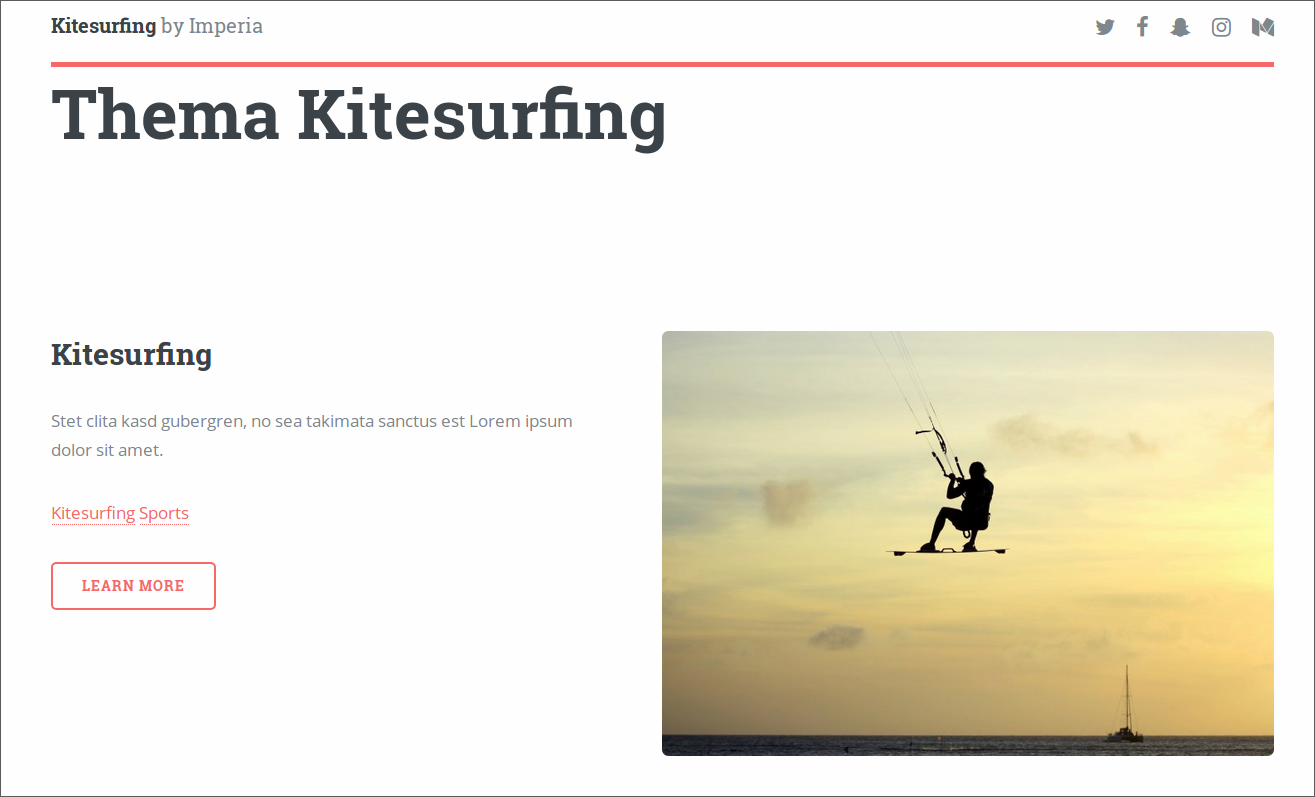
To generate a tag overview for all tags, proceed as follows:
- Set up a system service for your tag overviews.
- Create a SiteActive template for overview pages.
1. Creating a system service#
- Choose the System > System Services menu.
- Click on New system service..
- In the form that opens, make the settings for the new system service:
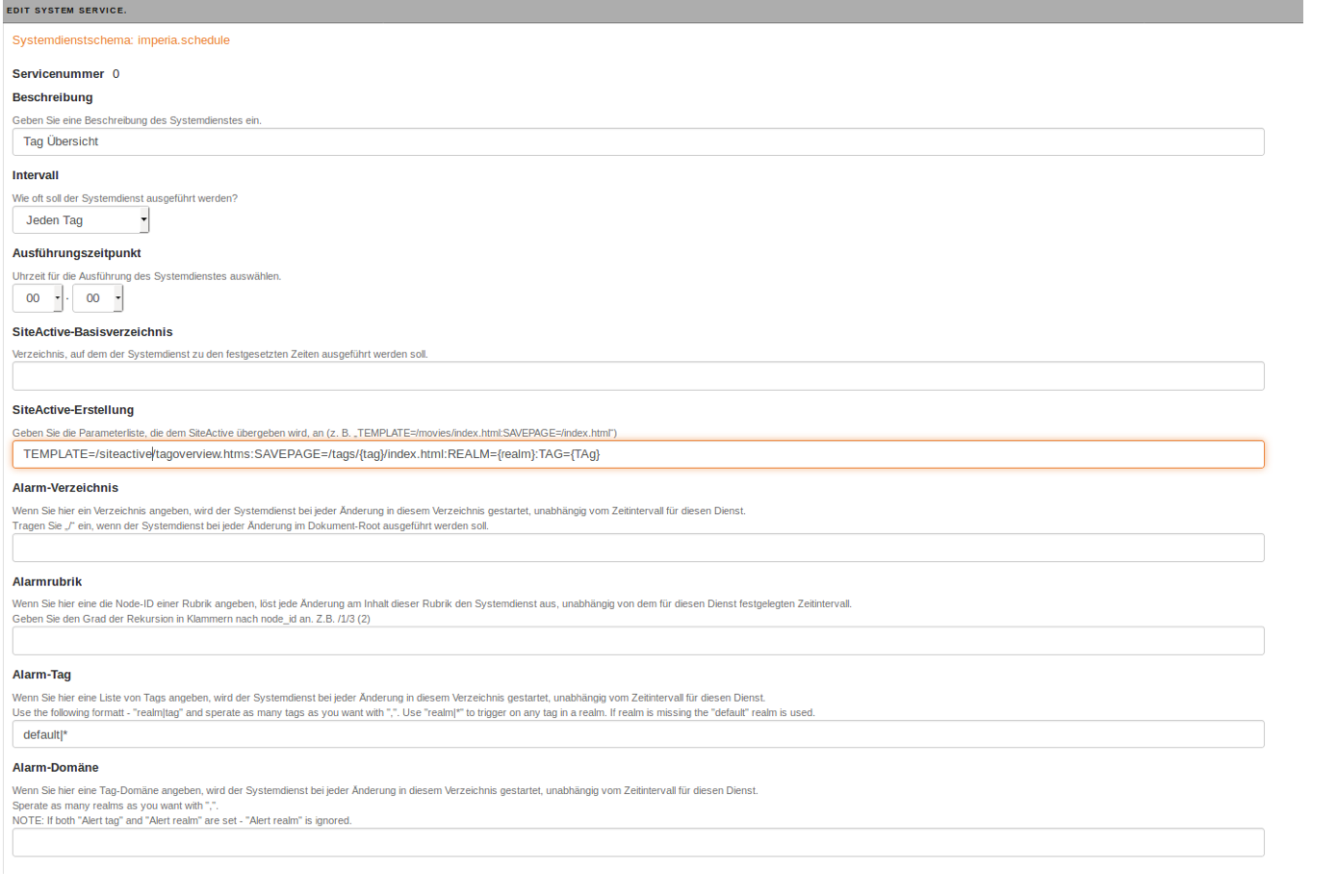
- Description: Enter a description for the new system service.
- ActiveList generation:
TEMPLATE=/siteactive/tagoverview.htms:SAVEPAGE=/tags/{tag}/index.html:REALM={realm}:TAG={TAG}TEMPLATE=Enter here the path to the SiteActive template for the overview page.SAVEPAGE=The parameter {tag} is a placeholder for the specific tag of the respective tag overview page.REALM=The realm is filled by the left parameter preceding the pipe character of the alarm tag. In the example the REALM is default. You could also define all authors or other realms.TAG=Passes the tag to the SiteActive template.
- Alert tag:
default|*The Alert tag parameter specifies which realm-tag combination the system service should listen for. The syntax isRealm|Tag. In the example, the system service listens to all tags (the wildcard character*includes all tags) of the realm "default". - Set the other system service settings as described in the Admin documentation in System Services.
2. Creating SiteActive template#
In the template, you can now use Perl-SiteActive to retrieve all documents for a tag and then display them as a tag overview.
<IMPERIA lang=perl>
        use strict;
        require Imperia::TagStore;
        my $ts = Imperia::TagStore->new();
        my $html = '';
        my $realm = 'default';
        my $sm = $imperia->common->{site_meta};
        my $tag = $FORM->{TAG};
        my @uriList = $ts->getURIsByTagAndRealm($tag, $realm);
        foreach my $uri (@uriList) {
            my $meta = $sm->getMeta($uri);
            my $title = $meta->getValues('title');
            my $teaser_text = $meta->getValues('teaser_text');
            my $directory = $meta->getValues('directory');
            my $filename = $meta->getValues('filename');
            my $bigteaser_img = $meta->getValues('bigteaser_img');
            $html .= qq|
                <div class="teaser">
                    <img src="$bigteaser_img" alt="" />
                    <h2>$title</h2>
                    <p>$teaser_text</p>
                    <div>
                        <a href="$directory/$filename" class="button big">
                        LearnMore</a>
                    </div>
                </div>
            |;
        }
        print $html;
</IMPERIA>
First you have to instantiate the imperia TagStore to get the URLs of the corresponding documents later using the current tag and realm:
require Imperia::TagStore;
my $ts = Imperia::TagStore→new();
my $tag = $FORM->{TAG};.
You can use my $sm = $imperia→common→{site_meta}}; to get the Metainfo object.
The getURIsByTagAndRealm method is used to retrieve all URLs of documents with the corresponding tag using the current tag and realm:
my @uriList = $ts->getURIsByTagAndRealm($tag, $realm);
Now you can use $sm→getMeta($uri) to read the meta information of the document:
my $meta = $sm->getMeta($uri);
my $title = $meta->getValues('title');
my $teaser_text = $meta->getValues('teaser_text');
my $directory = $meta->getValues('directory');
my $filename = $meta->getValues('filename');
my $bigteaser_img = $meta->getValues('bigteaser_img');
Create an overview page of all tags of a realm#
In addition to the tag overview pages, you can also create an overview page for all tags of a given realm, which then takes you back to the tag overview pages.
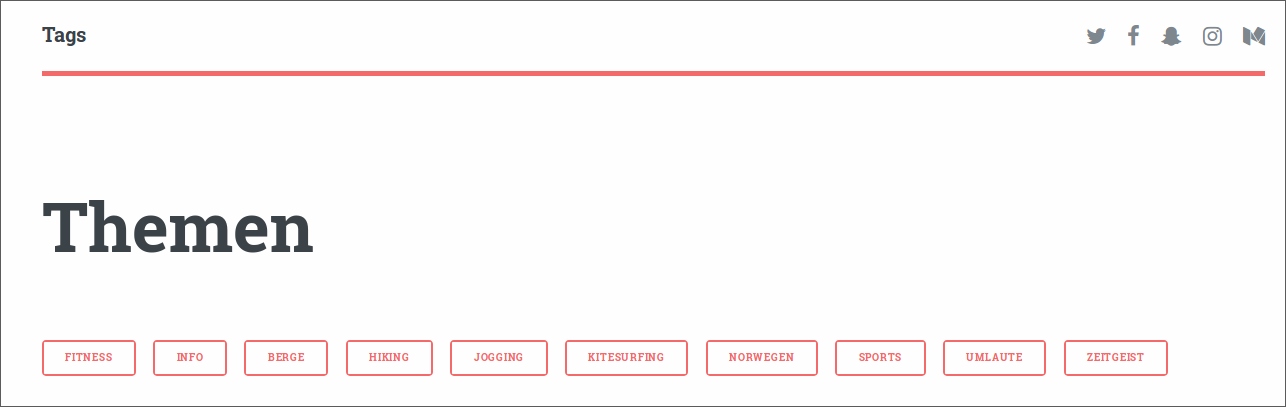
To generate a tag overview for all tags, proceed as follows:
- Set up a system service for your tag overviews.
- Create a SiteActive template for overview pages.
1. Creating a system service#
- Choose the System > System Services menu.
- Click on New system service.
- In the form that opens, make the settings for the new system service:
-
Description: Enter a description for the new system service.
-
ActiveList generation:
TEMPLATE=/siteactive/tags.htms:SAVEPAGE=/tags/index.html - Alert tag:
defaultThe Alert tag parameter specifies which domain the system service should listen to. In the example, the system service listens to the domaindefault. If a new document is assigned adefaulttag to the domain, the system service is triggered. - Set the other system service settings as described in the Admin documentation in System Services.
2. Creating SiteActive template#
The tag overview can be created with a simple SiteActive template.
<IMPERIA lang=perl>
           use strict;
           require Imperia::TagStore;
           my $ts = Imperia::TagStore->new();
           my @list = $ts->getStoredTagsForRealm('default');
           my $html;
           foreach my $entry (@list) {
           $entry = lc($entry->[1]);
           $html .= " <li><a href='$entry/' class='button small'>$entry</a></li>";
           }
           print $html;
</IMPERIA>
To access all tags of a specific realm, the imperia TagStore must be instantiated:
require Imperia::TagStore;
my $ts = Imperia::TagStore→new();
getStoredTagsForRealm('realm') method is used to read all tags of a realm. `$entry' contains the REALM, the TAG and how often the tag appears.
[ 'default', 'Hiking', 1 ]
To get the tag we use $entry = lc($entry->[1]); in the example.